
Views
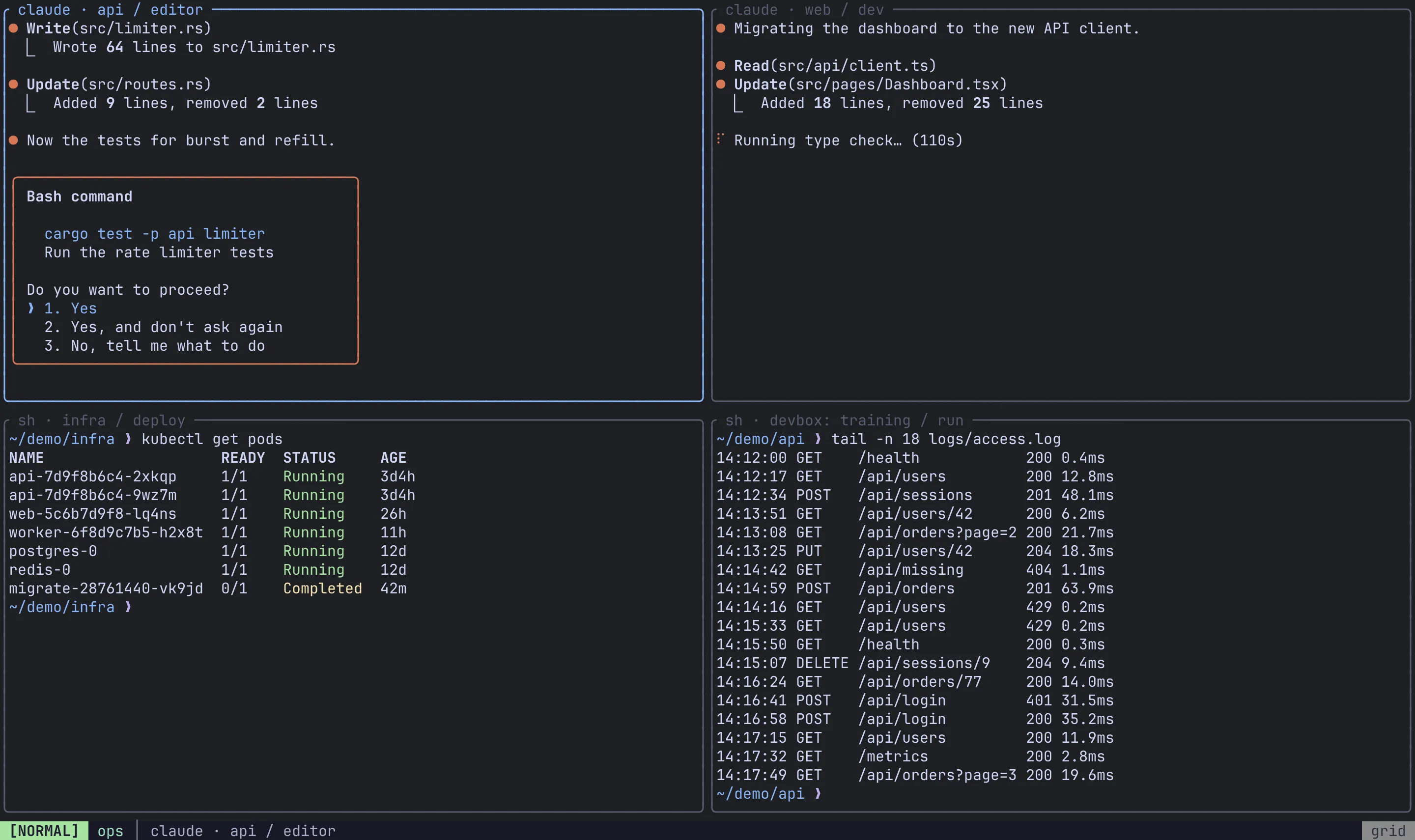
A View is a screen made of panes that already exist somewhere else: in other tabs, other sessions, or on other machines. Each cell is a live alias of the real pane. You see its output as it happens and what you type goes to it, while the pane itself stays where it is. Use a View to watch a build on one machine, a log tail on another and an agent in a third session, all at once, without moving any of them.
Create a view
Section titled “Create a view”From the session manager. This is the quickest way to gather panes from several places.
- Open the session manager with
Ctrl-a x m. - Move to a pane and press
Spaceto mark it. Mark as many as you like, across sessions, tabs and connected remotes. - Press
vthena. The view picker opens. - Pick an existing view, or New view to create one.
With nothing marked, va adds the highlighted pane, or every pane of the highlighted tab.
From the pane you’re in. Ctrl-a w a adds the focused pane to a view through the same picker.
A new view created from the picker is named View 1, View 2 and so on, and opens straight away. Adding to an existing view doesn’t switch to it. To create an empty view with a name of your choosing, press Ctrl-a w n.
Enter and leave
Section titled “Enter and leave”| Action | Keys |
|---|---|
| Open a view | Alt-s or Ctrl-a x s (views are listed first in the switcher) |
| Leave the view; it stays available | Ctrl-a w q |
Views also appear under their own Views group in the session manager. Enter on a view opens it; Enter on one of its cells opens it with that cell focused.
Work inside a view
Section titled “Work inside a view”A view takes over the keyboard while it’s on screen. The familiar pane keys act on its cells:
| Action | Keys |
|---|---|
| Move focus between cells | Alt-h / Alt-j / Alt-k / Alt-l |
| Cycle the view’s layout | Alt-Space, Ctrl-a Space or Ctrl-a w Space |
| Zoom the focused cell | Alt-z, Ctrl-a f or Ctrl-a p z |
| Move the focused cell | Alt-H / Alt-J / Alt-K / Alt-L |
| Resize the focused cell | Ctrl-a p R then h / j / k / l |
| Make the focused cell the master | Alt-m or Ctrl-a p m |
| Remove the focused cell from the view | Ctrl-a w x or Ctrl-a p x |
Everything else you type goes to the pane behind the focused cell.
Layouts in a view
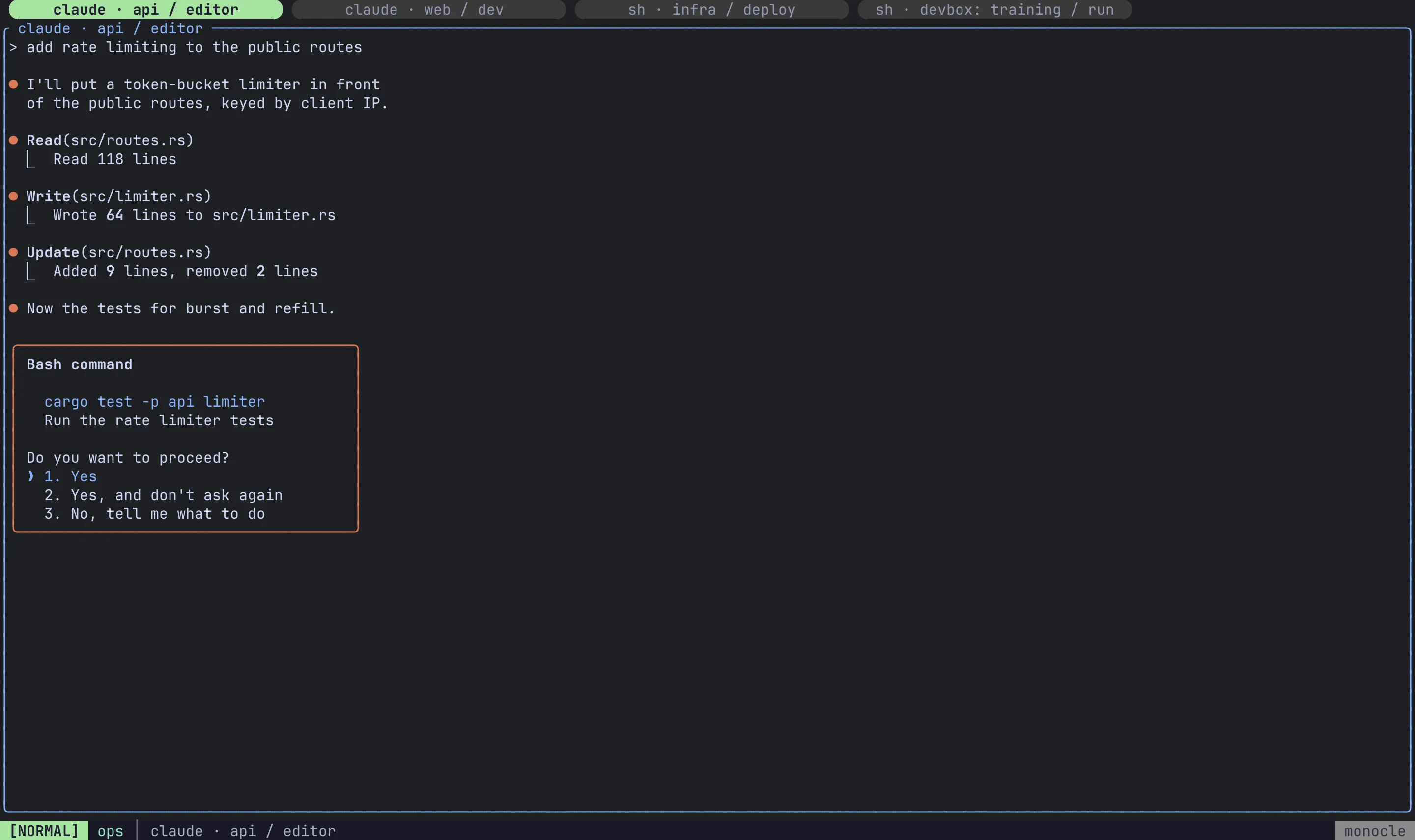
Section titled “Layouts in a view”A view uses the same layout engine as a tab (see Layouts). It starts in Grid, or in the first enabled layout if [layouts] turns Grid off, and cycles through whichever automatic layouts are enabled. Moving or resizing a cell switches the view to custom until you next cycle.
In Monocle, a title strip along the top names every cell:
A pane in two places
Section titled “A pane in two places”A pane can be on screen in its own session and in a view at the same time. While its own tab is showing in any attached terminal, the view’s cell shows an Active in session placeholder instead of a copy, and the pane keeps its full size in its real tab. The cell comes back as soon as you leave that tab.
Manage views
Section titled “Manage views”| Action | Keys |
|---|---|
| New view (prompts for a name) | Ctrl-a w n |
| Rename the current view | Ctrl-a w r |
| Delete the current view, for every terminal | Ctrl-a w d |
In the session manager, with a view or one of its cells highlighted:
| Action | Keys |
|---|---|
| Rename the view | v r |
| Remove the highlighted cell | v x |
| Delete the view | v d, or d then y to confirm |
Shared, but not saved
Section titled “Shared, but not saved”Views live on your local Remux server, so every terminal attached to it sees the same views. Adding a cell, moving focus, changing the layout or zooming in one terminal shows up in all the others. Their cells can still point at panes on any connected remote.
Related
Section titled “Related”- Sessions & persistence: the session manager and the switcher
- Remotes over SSH: bring panes from other machines into a view
- Layouts