
Keyboard
Remux keeps out of your way until you ask for it. In Normal mode every key goes to the program in the focused pane, except two kinds: the prefix (Ctrl-a), which opens a tree of commands, and a small set of Alt shortcuts, which act immediately. This page is a tour of the default keys by task. Every one of them can be changed; Keybindings has the full default key map with the action behind each key, and shows how to rebind them.
| Mode | What keys do | Enter with | Leave with |
|---|---|---|---|
| Normal | Go to the focused pane’s program | Esc from any other mode |
— |
| Command | Walk the key tree | Ctrl-a |
Esc, or a key that runs a command |
| Visual | Move through scrollback and select | Ctrl-a v |
Esc |
| Search | Type a scrollback search | / in Visual mode, or Ctrl-a s s |
Esc |
The prefix and which-key
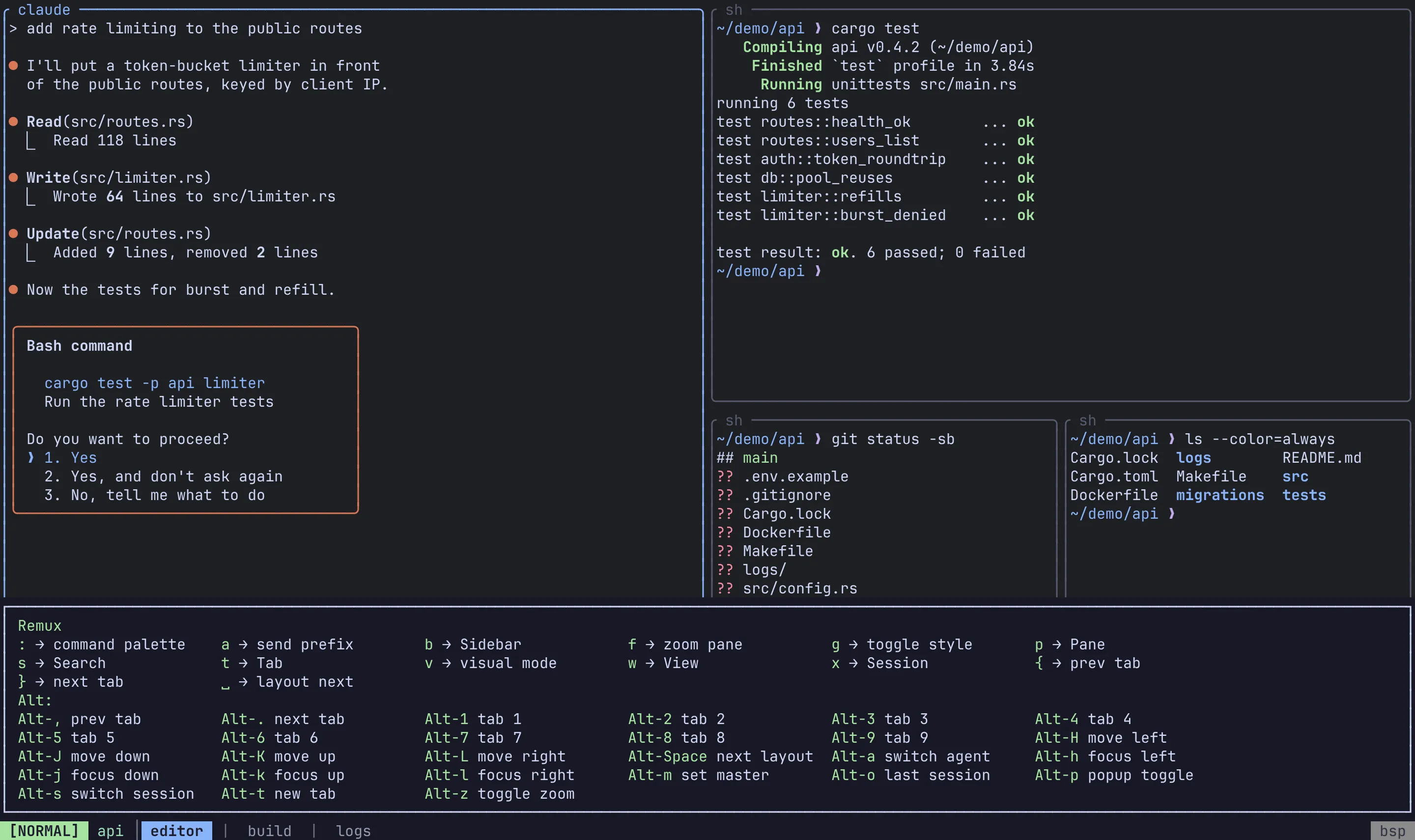
Section titled “The prefix and which-key”Press Ctrl-a to enter Command mode. The keys that follow walk a tree: p opens the pane group, t the tab group, and so on, until you reach a key that runs a command. A which-key popup lists what you can press at the current level, along with the global Alt shortcuts.
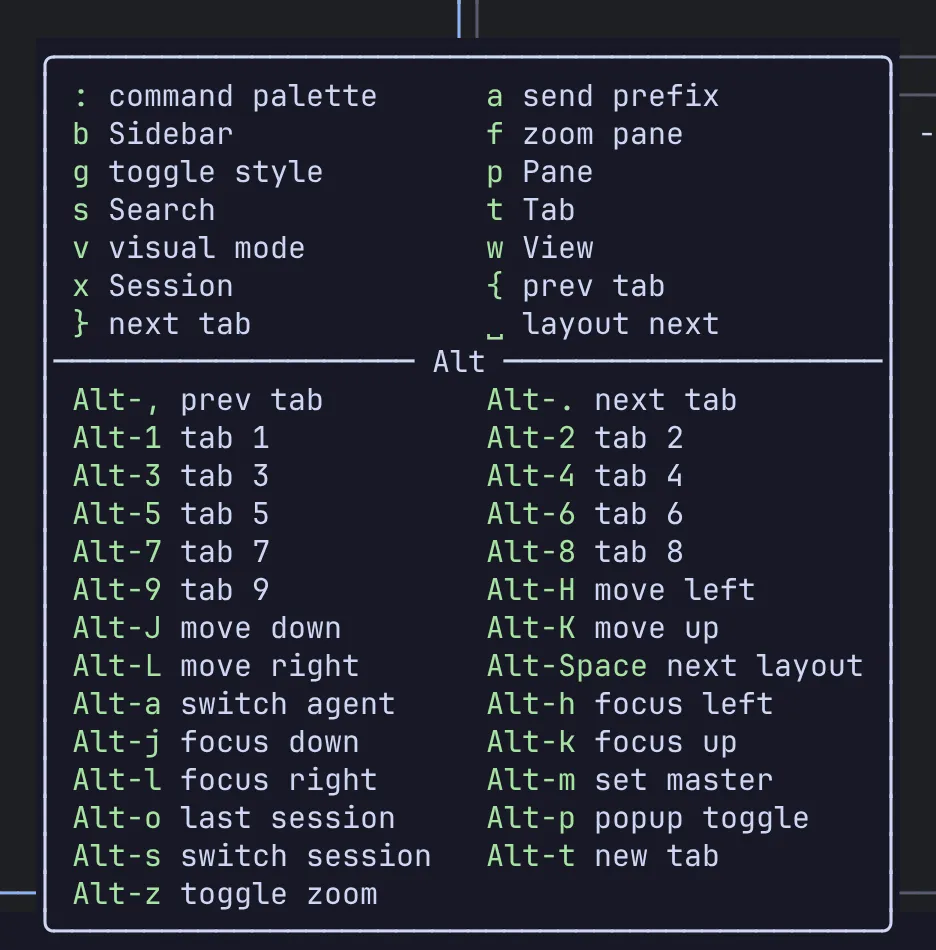
Most commands return you to Normal mode once they run. Esc returns to Normal from any depth of the tree.
To send a literal Ctrl-a to the program in the pane, press Ctrl-a a.
which_key_position under [appearance] sets where the popup is drawn: anchored (the default) at the bottom of the screen, centered in the middle, or full_width across the whole width above the status bar. See Theme.
Alt shortcuts
Section titled “Alt shortcuts”These work directly in Normal mode, with no prefix.
| Action | Keys |
|---|---|
| Focus left / down / up / right (also into and out of a sidebar) | Alt-h / Alt-j / Alt-k / Alt-l |
| Move the pane left / down / up / right | Alt-H / Alt-J / Alt-K / Alt-L |
| Previous / next tab | Alt-, / Alt-. |
| Jump to tab 1 to 9 | Alt-1 … Alt-9 |
| New tab | Alt-t |
| Quick session switcher | Alt-s |
| Agent switcher | Alt-a |
| Previous session | Alt-o |
| Zoom the focused pane | Alt-z |
| Toggle the popup terminal | Alt-p |
| Cycle the layout | Alt-Space |
| Make the focused pane the master (Master layout) | Alt-m |
Prefix key tree
Section titled “Prefix key tree”Keys below follow Ctrl-a. For the action name behind each key, which is what you write in the config to rebind it, see Default bindings.
Top level
Section titled “Top level”| Action | Keys |
|---|---|
| Pane group | p |
| Tab group | t |
| Session group | x |
| Search group | s |
| View group | w |
| Sidebar group | b |
| Visual mode | v |
| Cycle the layout | Space |
| Zoom the focused pane | f |
| Next / previous tab | } / { |
| Toggle border style (Zellij / tmux) | g |
| Command palette | : |
Send a literal Ctrl-a |
a |
Panes: p
Section titled “Panes: p”| Action | Keys |
|---|---|
| New pane (placed by the layout) | p n |
| Split side by side / top and bottom | p v / p s |
| Close the pane | p x |
| Focus left / down / up / right | p h / p j / p k / p l |
| Move the pane left / down / up / right | p H / p J / p K / p L |
| Zoom | p z |
| Toggle the popup terminal | p o |
| Make the pane the master | p m |
| Rename the pane | p r |
| Move the pane to another tab, or a new one | p t |
| Add the pane to a stack | p a |
| Next / previous pane in the stack | p ] / p [ |
| Fold into the left / down / up / right neighbour’s stack | p S h / p S j / p S k / p S l |
| Take out of the stack, to the left / below / above / right | p U h / p U j / p U k / p U l |
| Resize left / down / up / right by 5 | p R h / p R j / p R k / p R l |
Inside a stack, p H and p L move the pane one place along the stack, and past its end take it out into its own slot. p J and p K take it out below or above at once.
The resize group p R stays open after each key, so Ctrl-a p R l l l resizes three steps in a row. Press Esc when you’re done.
Tabs: t
Section titled “Tabs: t”| Action | Keys |
|---|---|
| New tab | t n |
| Close the tab | t x |
| Rename the tab | t r |
| Next / previous tab | t ] / t [ |
| Move the tab | t m |
| Jump to tab 1 to 9 | t 1 … t 9 |
Sessions: x
Section titled “Sessions: x”| Action | Keys |
|---|---|
| Quick session switcher | x s |
| Agent switcher | x a |
| Previous session | x o |
| New session | x n |
| Rename the session | x r |
| Detach | x d |
| Session manager | x m |
| Move the session to a folder | x f |
Search: s
Section titled “Search: s”| Action | Keys |
|---|---|
| Search scrollback | s s |
Open scrollback in $EDITOR |
s e |
Views: w
Section titled “Views: w”| Action | Keys |
|---|---|
| New view | w n |
| Add the focused pane to a view | w a |
| Rename the view | w r |
| Remove the focused cell from the view | w x |
| Cycle the view’s layout | w Space |
| Leave the view | w q |
| Delete the view | w d |
See Views.
Sidebars: b
Section titled “Sidebars: b”| Action | Keys |
|---|---|
| Show or hide the left / right / bottom sidebar | b h / b l / b j |
| Cycle focus through the visible panels, then back to the panes | b b |
Alt-h/j/k/l move into and out of a sidebar the same way they move between panes. See Sidebars.
Visual mode
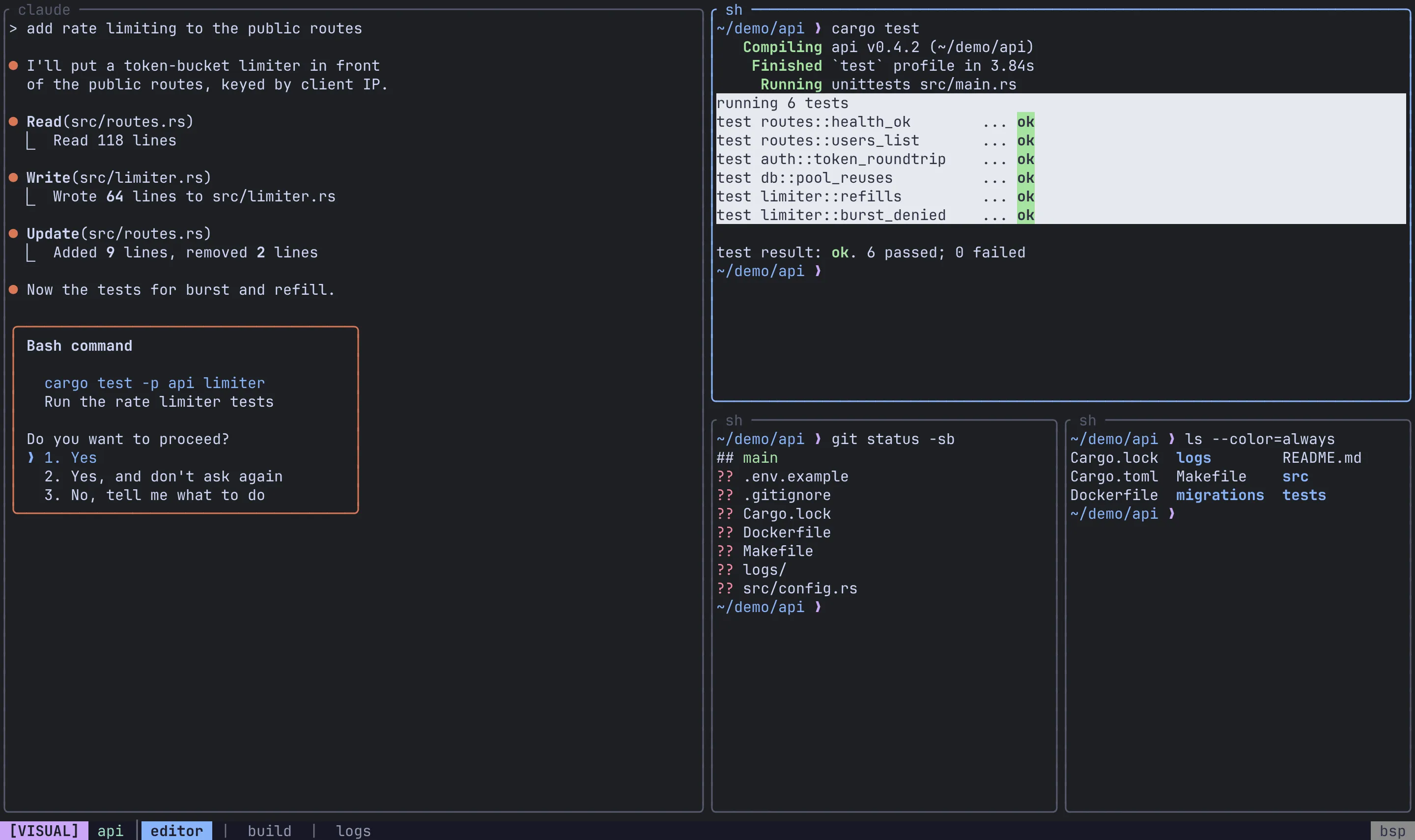
Section titled “Visual mode”Visual mode moves a cursor through the focused pane’s scrollback, vim style.
| Action | Keys |
|---|---|
| Move left / down / up / right | h / j / k / l |
| Half a page down / up | Ctrl-d / Ctrl-u |
| Top / bottom of the scrollback | gg / G |
| Start a character-wise selection | v or Space |
| Start a line-wise selection | V |
| Copy the selection to the clipboard | y |
| Search | / |
| Previous (older) / next (newer) match | n / N (or p) |
Open scrollback in $EDITOR |
e |
| Back to Normal | Esc |
Search mode
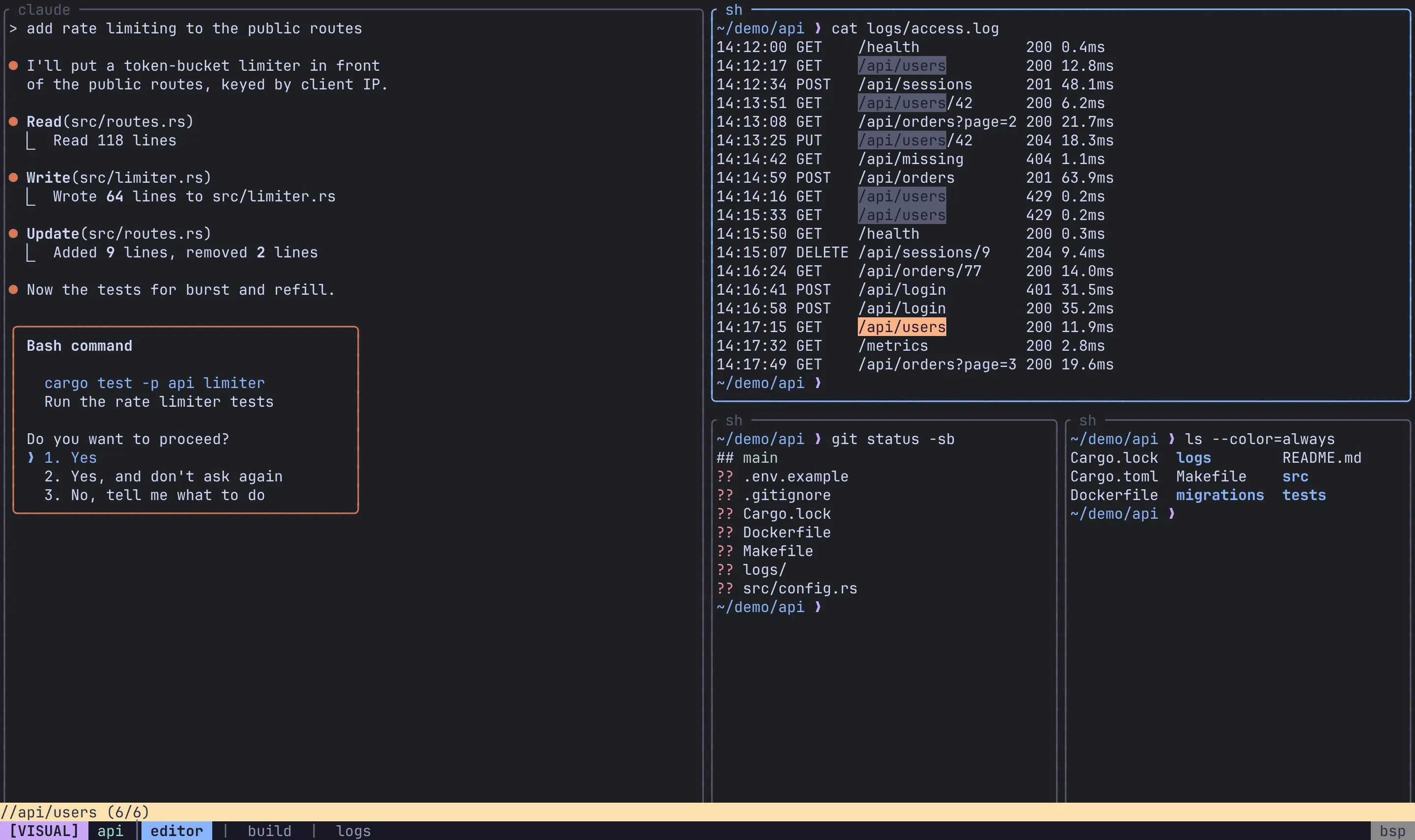
Section titled “Search mode”Type the query and press Enter. Matches are highlighted and you land in Visual mode on the most recent one, where n moves to earlier matches and N to later ones. Backspace edits the query; Esc cancels and clears the highlights.
Session manager
Section titled “Session manager”Ctrl-a x m opens the session manager, a tree of every folder, session, tab and pane on your local server and connected remotes.
| Action | Keys |
|---|---|
| Move | j / k or Down / Up |
| Switch to the selected node | Enter |
| Expand (connects a remote) / collapse | l / h, or Right / Left |
| Filter the tree | / |
| Mark a pane for a view | Space |
| Add the marked panes to a view | va |
| New session / new folder | n / c |
| Close | Esc or q |
It also takes two-key chords for acting on the selected row, such as tr to rename a tab or sx to close a session. See Sessions & persistence for the full list.
Next steps
Section titled “Next steps”- Keybindings: rebind or unbind keys, change the prefix, chain commands.
- Layouts: what
Alt-Spacecycles through. - CLI reference: the
remuxcommands.