
Remotes over SSH
A remote is a Remux server on another machine that your local client reaches over SSH. Its sessions appear beside your local ones in the session manager, the quick switcher and the sessions sidebar, and attaching to one feels the same as attaching locally: same keys, same layouts, same overlays. Remote panes can also be cells in a View.
Before you start
Section titled “Before you start”- Remux must be installed on the remote machine.
- You need working SSH access to it. Remux runs your system’s
ssh, so everything in~/.ssh/config(host aliases, keys, jump hosts) applies. - Both machines should run the same build of Remux. See Keep builds in step.
You don’t have to start anything on the remote. When the client connects, it runs remux relay over SSH, and the relay starts that machine’s Remux server if it isn’t already running.
Declare a remote
Section titled “Declare a remote”Add a [remotes.<name>] table to your config file. The name is what you’ll see in the session tree.
[remotes.pi]ssh = "pi@raspberrypi.local"remux_path = "/usr/local/bin/remux"auto_connect = true
[remotes.devbox]ssh = "user@example.com"port = 2222identity = "~/.ssh/id_ed25519"extra_args = ["-o", "ServerAliveInterval=30"]| Key | Default | Meaning |
|---|---|---|
ssh |
required | SSH destination, such as user@host or a ~/.ssh/config host alias |
remux_path |
"remux" |
Path to the remux binary on the remote. Set it when remux isn’t on the non-interactive PATH there, for example under ~/.cargo/bin. |
port |
unset | SSH port, passed as -p |
identity |
unset | Identity file, passed as -i |
extra_args |
[] |
Extra ssh arguments, placed before the destination |
auto_connect |
false |
Connect when the client starts, instead of waiting until you open the remote |
The same options are in the config reference.
Remotes apply on save: the new remote appears in the session manager without restarting anything.
Connect
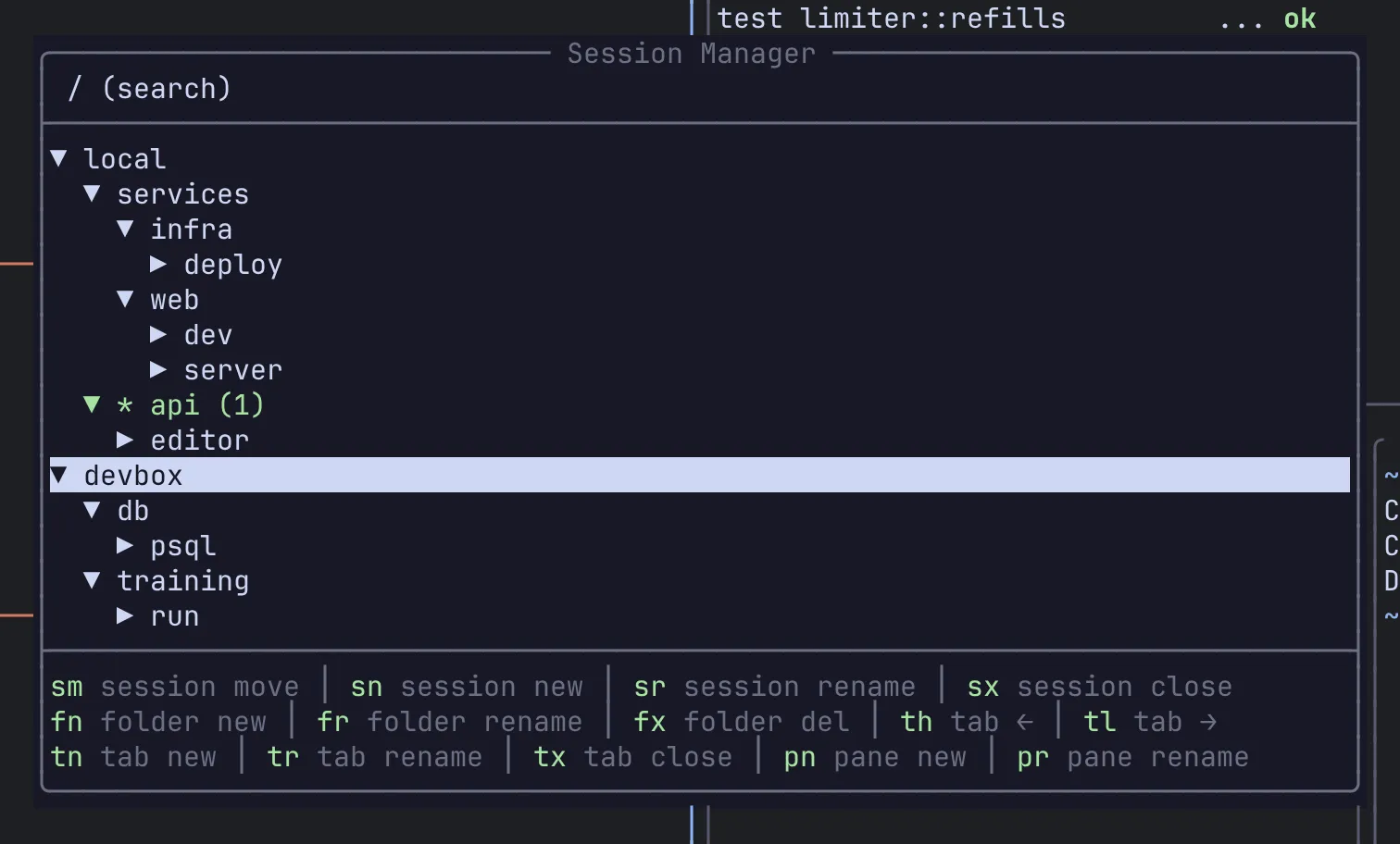
Section titled “Connect”Remotes connect lazily. Open the session manager with Ctrl-a x m: every configured remote is a top-level row next to local. Expand it with l, Enter or the right arrow, and Remux connects and lists that server’s sessions underneath.
From there, Enter on a remote session, tab or pane attaches to it, exactly as for a local one. Once connected, the remote’s sessions also appear in the quick switcher (Alt-s).
To connect to a host you haven’t declared, open the command palette (Ctrl-a :) and run:
RemoteConnect user@hostRemoteConnect also accepts the name of a configured remote. An ad-hoc destination uses the defaults above (remux on the remote’s PATH, no extra arguments) and is forgotten when the client exits.
Manage remote sessions
Section titled “Manage remote sessions”The session manager’s editing keys work on a connected remote’s tree too: create, rename, move and delete sessions, folders, tabs and panes there just as you do locally. See Sessions & persistence for the keys.
Disconnect
Section titled “Disconnect”In the session manager, highlight a connected remote’s row, press d, then y to confirm. Or run RemoteDisconnect <name> from the command palette.
Disconnecting only closes your connection. Nothing on the remote server stops, and its sessions keep running for next time. Expand the row again to reconnect.
Remote status
Section titled “Remote status”A remote’s row in the session tree tells you where it stands:
| Suffix | Meaning |
|---|---|
| (none) | Connected |
(offline) |
Not connected yet |
(connecting…) |
Connecting |
(failed: …) |
The connection failed; the message says why |
(disconnected) |
You disconnected it |
(build mismatch: rebuild + restart) |
Connected, but the server runs a different build from this client |
Keep builds in step
Section titled “Keep builds in step”Every Remux binary is stamped with the commit it was built from. When a connected server’s stamp differs from your client’s, its row gets (build mismatch: rebuild + restart). The same check applies to your local server.
The flag doesn’t say which side is behind, and fixing it can take two steps:
- Rebuild so the client machine and the remote are built from the same commit.
- Restart the server that was rebuilt. A running server keeps serving its old code until it’s replaced, so on that machine run:
remux restartremux restart stops the server and starts the new binary. With the default persistence settings your sessions are saved on the way down and restored on the way up; Views are not (see Views).
When two builds are too far apart to talk to each other at all, the client refuses the connection and the row shows (failed: …) with the reason.
Attach from the command line
Section titled “Attach from the command line”To go straight to one remote session without the session manager:
remux attach-remote user@host workremux attach-remote user@host work --remux-path /usr/local/bin/remuxRelated
Section titled “Related”- Sessions & persistence: the session manager and the switcher
- Views: combine panes from several machines on one screen
- Config reference
- Troubleshooting