
Concepts
Remux is a client–server terminal multiplexer. This page covers the pieces you work with and how they relate. Once they are clear, the rest of the docs read as details.
Server and client
Section titled “Server and client”The server is a background process that owns everything: every session, tab and pane, and the shell or program running in each pane. It listens on a Unix socket.
The client is what runs in your terminal when you type remux. It connects to the server, sends your keystrokes, and draws what the server renders. The first client starts the server if none is running.
Because the programs live in the server, closing the terminal or detaching the client leaves them running. Several clients can attach at once, from different terminals.
remux restart # restart the server, keeping saved sessionsremux stop # save sessions and stop the serverSessions, tabs and panes
Section titled “Sessions, tabs and panes”State is a tree:
- A session is a named workspace. You attach to one session at a time and switch between them with
Alt-s,Alt-oor the session manager. - A tab belongs to a session. Each tab has its own arrangement of panes, and the tab bar shows markers when something happens in a tab you’re not looking at: a bell, new output, or a busy tab going quiet.
- A pane is one terminal. Each runs your login shell unless it was started with a command.
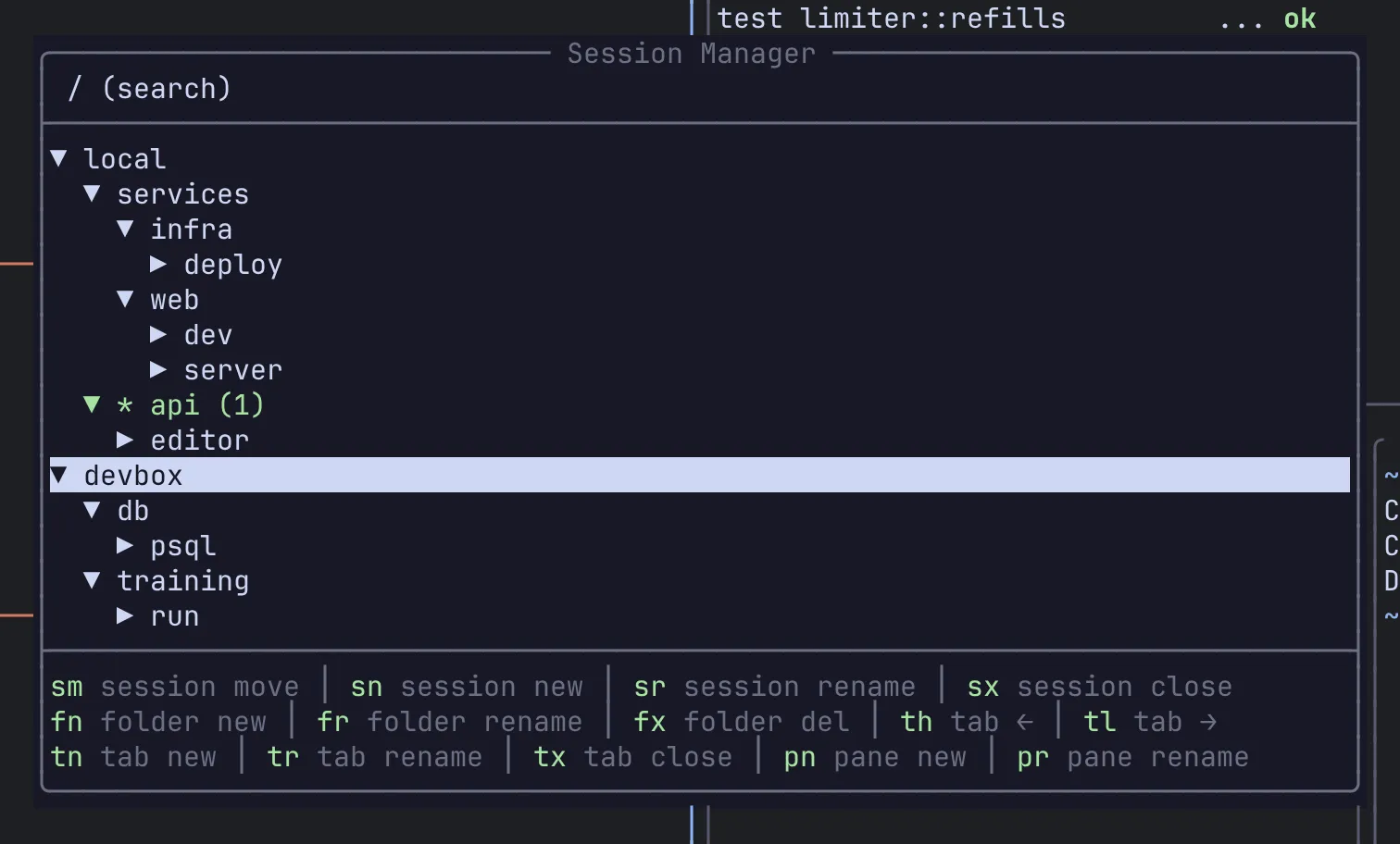
Sessions can be grouped into folders in the session tree. Folders only organise the tree; they don’t change how sessions behave.
Stacks
Section titled “Stacks”Several panes can share one position in a layout as a stack. Only one pane of a stack is visible at a time and the others show as tabs along its top edge, so a stack is a way to keep related terminals in one slot. See Keyboard for the stack keys under Ctrl-a p.
The popup terminal
Section titled “The popup terminal”Each session has one popup terminal, a scratch shell that floats over the layout instead of taking a slot in it. Toggle it with Alt-p. It keeps running while hidden, so you get the same shell and history back each time.
Layouts
Section titled “Layouts”Each tab has a layout that decides where its panes go. The automatic layouts (BSP, Master, Monocle, Grid, Columns and Rows) place panes for you; Alt-Space cycles through them. As soon as you split or resize by hand, the tab switches to Custom, which keeps exactly the arrangement you made. See Layouts.
Remux is modal. The mode you are in decides where a key goes:
| Mode | What keys do | How to get there |
|---|---|---|
| Normal | Go to the program in the focused pane, except the prefix and the Alt shortcuts |
The default; Esc from the others |
| Command | Walk the key tree shown by which-key | Ctrl-a |
| Visual | Move through scrollback and select text | Ctrl-a v |
| Search | Type a scrollback search | / in Visual mode, or Ctrl-a s s |
The current mode is shown on the status bar. See Keyboard for the keys in each.
Remotes
Section titled “Remotes”A remote is another machine running Remux. You declare it under [remotes.<name>] in your config, and it appears as its own node in the session tree and the switcher, next to your local sessions. Opening it connects over ssh, starts remux relay on the other side, and talks to that machine’s server through it. Once you switch to a remote session it behaves like a local one.
Nothing runs on your machine on the remote’s behalf: its sessions live in its own server and keep running when you disconnect. See Remotes over SSH.
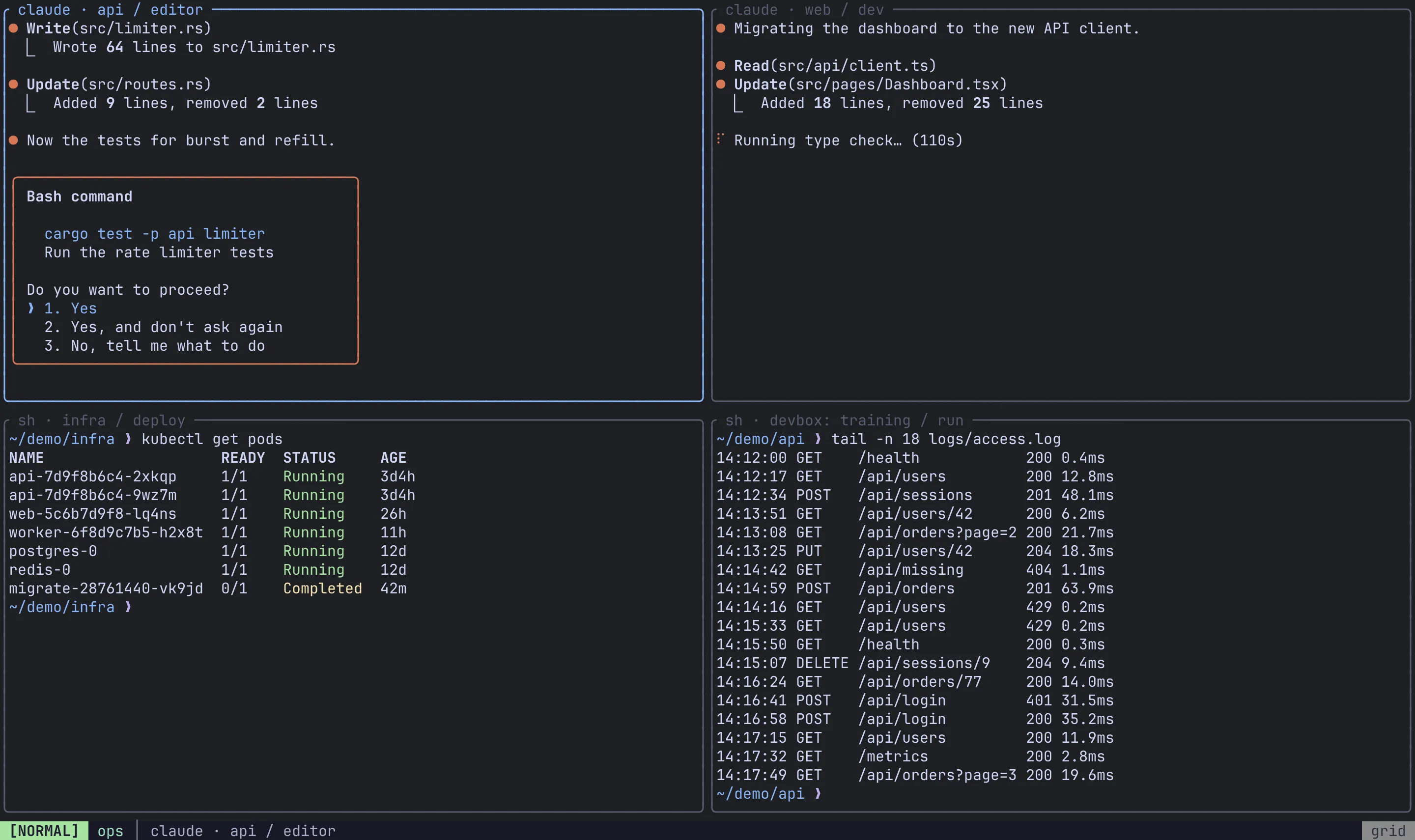
A View is a screen made of panes borrowed from anywhere: different sessions, different tabs, different machines. Each cell of a View is a live alias of a real pane, so typing in the cell types into that pane and it keeps living in its own session. Use a View to watch several builds, logs or agents at once without moving them.
Views live in the server, so every terminal attached to it sees the same Views. They are not saved to disk and disappear when the server restarts. See Views.
Sidebars
Section titled “Sidebars”Sidebars are panels docked to the left, right or bottom edge of the client: a live session tree, a file browser, or a list of the panes running AI coding agents. They are drawn by the client around the panes, not by the server, and there are none until you configure one. See Sidebars and Agents.
Persistence
Section titled “Persistence”With the default save_sessions = true, the server writes its sessions to disk after every structural change and when it shuts down. With automatic_restore = true, also the default, they come back live the next time the server starts. Set automatic_restore = false to have saved sessions come back as dormant entries in the session manager instead, which start only when you switch to them.
What is restored is the structure: sessions, tabs, panes, layouts and each pane’s working directory. The programs that were running are not. See Sessions & persistence.
Where Remux keeps its files
Section titled “Where Remux keeps its files”| What | Where (Linux defaults) |
|---|---|
| Config | ~/.config/remux/config.toml ($XDG_CONFIG_HOME/remux/) |
| Saved sessions | ~/.local/share/remux/state.json ($XDG_DATA_HOME/remux/) |
| Logs | ~/.local/state/remux/server.log and client.log ($XDG_STATE_HOME/remux/) |
| Socket | $XDG_RUNTIME_DIR/remux.sock, or /tmp/remux.sock without it |
On macOS the config and saved sessions default to ~/Library/Application Support/remux/. Setting the XDG variables to absolute paths overrides the defaults on either platform.
What reloads live
Section titled “What reloads live”The client watches its config file. Keybindings, remotes, sidebars and the colours of what the client draws apply as soon as you save. Settings the server reads when it starts, such as [general], [layouts], [agents] and the colours of pane borders, tab strips and the status bar, need remux restart. See Configuration and, for appearance settings, Theme.
Next steps
Section titled “Next steps”- Keyboard: the prefix, modes and default keys.
- Layouts: how each layout arranges panes.
- Configuration: the config file and what it controls.